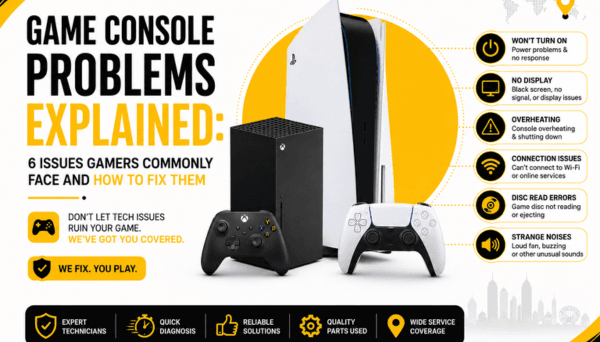
It usually starts right when you finally have a free evening to unwind. You grab your controller, hit the power button, settle into your favorite chair, and wait for the splash screen—only to be met with a completely black TV screen and a "No Signal" banner hovering in the corner. Or maybe your PS5 sounds like a jet engine before abruptly shutting down mid-boss fight, or your Nintendo Switch character keeps slowly walking off cliffs all by themselves.
Current-generation consoles like the PlayStation 5, Xbox Series X/S, and Nintendo Switch are incredible pieces of technology, but they push a massive amount of power through delicate, tightly packed hardware. Thermal stress, accidental cable tugs, dust buildup, and plain old wear and tear can bring a high-end setup to a grinding halt.
Explore Game Console Repair Services
When your main system goes dark, the immediate temptation is to panic or start browsing retail sites for an expensive replacement. But in reality, most common console failures stem from specific, highly fixable issues like a bent HDMI pin, clogged ventilation, or a worn-out thumbstick module.
Before you write your system off, let’s walk through six frequent console headaches, what’s actually happening inside the box, what you can safely check at home, and when it’s time to hand it over to a professional repair technician.
Why is my PS5 turning on but showing no picture?
You press the power button, the console gives its familiar beep, and the LED strip glows blue before turning white. Everything sounds normal, but your television refuses to acknowledge that the console is even connected.
When a PS5 powers up completely but sends no video feed, the issue almost always lives in the display output pipeline. While it can occasionally be a handshake glitch between your TV's software and the console, it frequently points to a strained or physically damaged HDMI port, a blown display encoder chip, or a broken internal trace on the motherboard.
Basic troubleshooting steps:
Check the simple stuff: Inspect both ends of the HDMI cable. Make sure it's seated flush against the back of the console and the TV port.
Swap ports and cables: Try a different high-speed HDMI 2.1 cable, and test a different HDMI input port on your TV.
Safe Mode boot: Turn the console off completely. Hold down the power button until you hear a second beep (about 7 seconds in). If the Safe Mode menu appears on screen, your physical port is fine, and you can try changing the video resolution or HDCP settings to fix a software conflict.
If Safe Mode also returns a black screen, or if you look into the back of the console with a flashlight and see bent metallic pins inside the HDMI slot, the physical port needs attention.
Why does my Xbox turn on but have no signal?
Much like the PS5, an Xbox Series X or Series S that lights up its logo button but leaves your TV pitch-black can be deeply frustrating. You hear the chime, the fan spins up smoothly, but there isn't a pixel of video on screen.
Xbox consoles use specialized display retimer chips that manage video signal timing. If the console suffers a sudden power surge, if a cable is pulled awkwardly while plugged in, or if the internal pins inside the port lose contact with the circuit board, the TV simply won't register a signal.
Try these basic checks first:
Perform a power cycle: Hold the Xbox power button on the front of the console for 10 seconds until it completely shuts down. Unplug the power cable from the wall for two minutes to clear the cache, then plug it back in and turn it on.
Test on a second screen: Move the console to a different monitor or TV in the house. This helps confirm whether the issue is a display resolution mismatch or a hardware fault within the Xbox itself.
Low-Resolution Boot: Press and hold the Power button and the Pair button (or Eject button on older models) simultaneously until you hear two beeps. This forces the Xbox to boot up in a basic 640x480 resolution, bypassing high-end display settings that might be crashing your TV's input.
If none of these combinations force an image onto the screen, the underlying issue is likely a damaged HDMI port or a failed internal display IC chip.
Why is my Nintendo Switch not charging or turning on?
Because the Nintendo Switch is designed to go everywhere with you, its USB-C port and battery take a beating. There is nothing worse than picking up your Switch for a trip, plugging it in, and seeing nothing but a dark, lifeless screen.
A completely unresponsive Switch usually comes down to a "deeply discharged" battery that needs time to recover, a bent pin inside the USB-C charging port, or a blown power management chip (M92T36) on the motherboard—which often happens when using low-quality, non-compliant third-party docks or chargers.
What to check at home:
The hard reset: If the console seems dead, hold down the power button for a full 15 to 20 seconds. Release it, then press it once normally. If the system was simply frozen in a black-screen sleep state, this forces a fresh boot.
Direct official power: Unplug the Switch from its dock and plug an official Nintendo Switch AC Adapter directly into the bottom of the handheld. Leave it alone on a flat surface for at least an hour before touching it.
Inspect the bottom port: Use a bright light to peek inside the USB-C port on the bottom of the console. Look for bent copper pins, lint, or foreign debris that might be shorting out the charger.
Important tip: Never try to force a charging cable into the Switch if you feel sudden resistance, and avoid picking at internal pins with metal safety pins or paperclips. Shorting those tiny power rails can turn a simple port fix into a complex motherboard repair.
Why does my PS5 overheat and shut down during gaming?
Modern consoles pack high-end PC-grade hardware into compact cases. To keep cool, the PS5 relies on a massive heatsink, liquid metal thermal compound, and a high-volume intake fan. If that system gets choked, the console will protect itself by abruptly turning off mid-game to prevent permanent chip damage.
If your PS5 plays basic media apps fine, but crashes to a hard shutdown after 15 to 30 minutes of playing a graphically intense PS5 game, thermal throttling is the main suspect. Dust quickly builds up inside the internal heat sink fins and ventilation grates, trapping hot air inside the chassis.
What you can try:
Give it breathing room: Make sure your console isn't trapped in a closed entertainment cabinet or pressed right up against a wall. It needs at least 10–15 centimeters of open space on all sides for clean airflow.
Clean the dust catches: Pop off the white outer plastic covers (they snap off easily without voiding your warranty) and check the built-in dust catcher holes. Gently vacuum out accumulated dust bunnies using a vacuum on low power or a soft brush.
If you’ve thoroughly cleaned the visible vents and given the console plenty of room, but it still shuts down without warning during heavy gaming, the internal liquid metal thermal interface may have dry spots, or dust has completely matted the deep radiator fins inside the power supply unit.
Why is my Nintendo Switch Joy-Con moving by itself?
You’re playing a precision platformer or a shooter, you let go of the thumbstick, and your character keeps drifting to the left or looking up at the sky. This is the notorious "Joy-Con drift," and it’s easily one of the most widespread console issues of this hardware generation.
Drift is caused by mechanical friction inside the thumbstick housing. Over time, the flexible graphite pads inside the module wear down from normal movement, leaving microscopic debris behind that tricks the sensors into registering inputs even when your thumb isn't touching the stick.
How to address it:
Recalibrate the sticks: Go to System Settings > Controllers and Sensors > Calibrate Control Sticks. Follow the on-screen prompts to see if a simple software offset fix clears up the movement.
Update controller firmware: In that same settings menu, select Update Controllers to ensure a recent system patch isn't causing phantom inputs.
Clean under the rubber skirt: Gently lift the tiny rubber dust flap under the analog stick cap with a plastic toothpick and spray a tiny burst of contact cleaner inside. Move the stick around and let it dry completely.
If recalibration and cleaning don't stop your character from wandering off on their own, the physical sensor contacts inside the thumbstick module are worn through. Replacing the analog stick assembly with a fresh module (or upgraded contactless TMR electromagnetic joysticks) fixes the problem permanently.
Why is my game console HDMI port not working?
Of all the physical components on modern home consoles, the HDMI port suffers the most physical stress. Cables get bumped, consoles get tipped over while plugged in, or people frequently yank cords out when moving their setup between rooms.
Because an HDMI port relies on dozens of microscopic solder joints connected directly to sensitive motherboard lines, even a small drop while plugged in can break those tiny physical connections.
Common signs your HDMI port is physically damaged:
- The TV screen constantly flickers, cuts to static, or drops out every time you step near the media console.
- The video signal only stays on if you prop up or angle the HDMI cable with a book or heavy object.
- The HDMI cable feels loose, wobbly, or doesn't snap securely into place like it used to.
- You can visibly see bent, broken, or pushed-back gold pins inside the socket.
Trying to "wiggle" a broken HDMI port to make a connection work is dangerous. Doing so can cause adjacent power pins to short against data lines, potentially blowing the display driver IC chip or surrounding capacitors deeper inside the console.
PRC Repair Offers Professional Game Console Repair Services
When basic home troubleshooting doesn't bring your screen back to life or clear up an overheating issue, opening up a modern gaming console without micro-soldering experience, surface-mount tools, and proper disassembly equipment usually causes more harm than good.
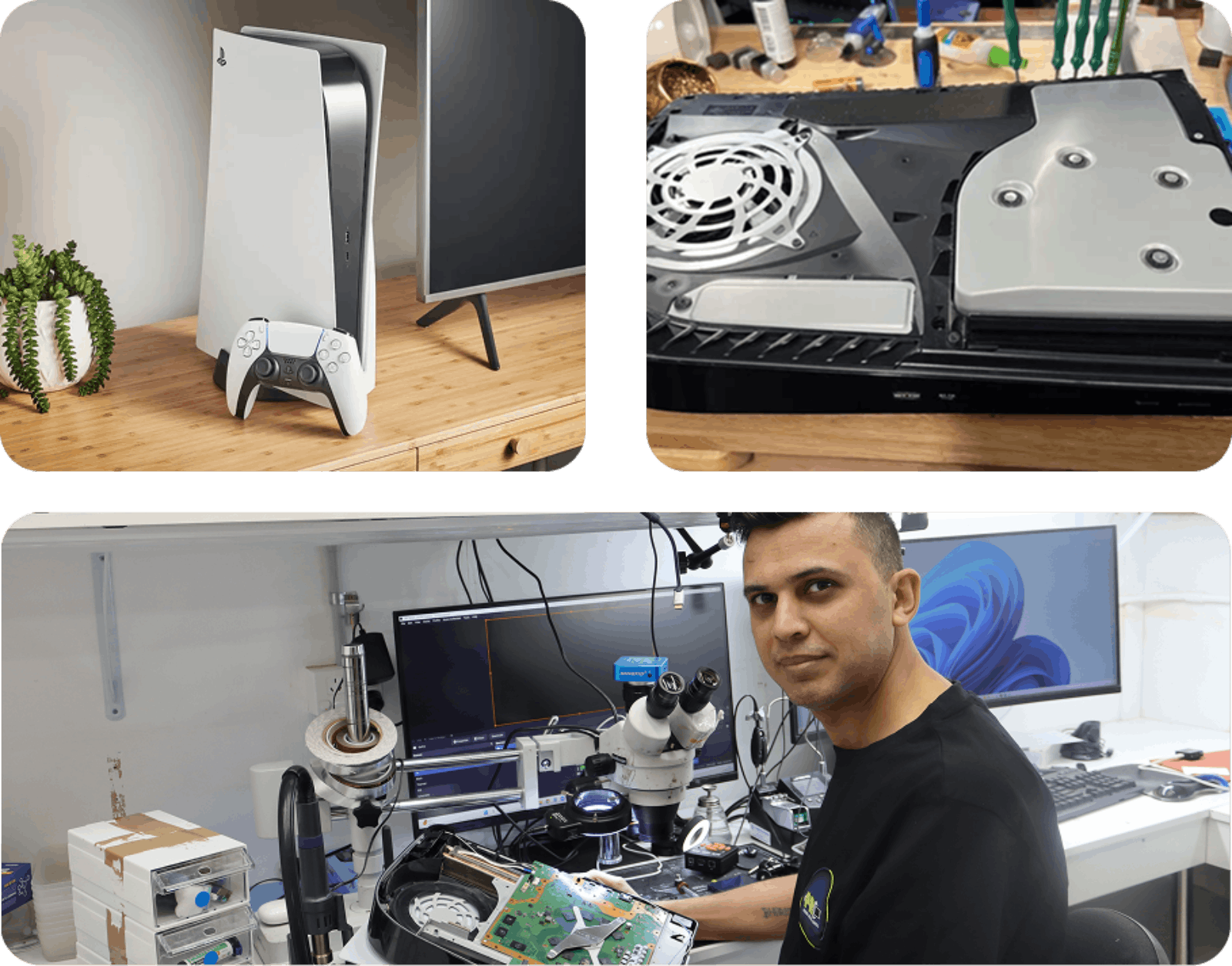
At PRC Repair, the priority is providing accurate diagnostics and practical repair work for gamers across Australia. Whether your PS5 needs a fresh HDMI port soldered onto the board, your Nintendo Switch needs a new USB-C charging assembly, or your Xbox needs specialized internal thermal work, the focus is on fixing your existing hardware rather than forcing you to buy a whole new console.
Get Professional Game Console Repair
Having skilled technicians handle your hardware ensures that sensitive internal systems—like liquid metal thermal applications, optical disc drive alignment, and micro-power circuits—are restored safely.
Why Choose PRC Repair?
Console repair isn't about guesswork or blindly swapping expensive mainboards. A "No Signal" message might look like a simple broken port, but it could actually be a trace fault, a shorted filter, or a blown retimer chip.
PRC Repair takes a methodical, diagnostic-first approach to console hardware. The team pinpoints the exact component that failed, explains what needs to be done in plain language, and carries out the fix so you can get back to your games as quickly as possible.
Whether you're dealing with a black screen on your PS5, no display output on your Xbox, charging faults on your Nintendo Switch, or persistent controller drift, getting a clear professional assessment gives you an easy, cost-effective way forward.
When Should You Get Your Console Professionally Repaired?
While cleaning dust from outer vents or running a Safe Mode reset are easy home fixes, deeper hardware failures require specialist equipment and steady hands.
It's time to seek a professional repair if:
- The console lights up and powers on, but consistently sends no video signal to any TV.
- The physical HDMI port looks loose, bent, or has pins visibly pushed out of place.
- Your Nintendo Switch fails to charge, won't show a charging icon, or turned off and never turned back on.
- Your PS5 shuts down abruptly without warning during graphic-intensive games, even after cleaning the vents.
- Your Joy-Con sticks continue to drift heavily after recalibration and cleaning efforts.
- You hear rattling sounds, grinding fan noises, or notice power issues after a physical drop.
Book Game Console Repair with PRC Repair
Addressing hardware issues early prevents small, simple component faults from causing wider damage across the mainboard later on.
Final Thoughts
A broken or non-responsive gaming console is a massive buzzkill, but it rarely means your gaming investment is over. Broken ports, worn-out thumbsticks, dry thermal paste, and clogged cooling fins are just standard mechanical realities of owning high-performance electronics.
By taking a moment to understand what your system's symptoms actually mean and turning to PRC Repair for a clear diagnostic check, you can protect your saved games, save money, and get your favorite system running smoothly again without breaking the bank on a brand-new console.
Get Game Console Repair from PRC Repair
Express Phone Repair & Protective Accessories Near Me: Western Sydney & North West Sydney
Looking for fast, walk-in phone repairs or durable device protection near Sydney & Surrounding Suburbs? Phone Repair Centre operates two dedicated Sydney locations: our flagship diagnostic laboratory at 122 Queen Street, St Marys, and our express kiosk at Schofields Village. We combine 30-minute hardware fixes with complimentary bubble-free screen protector application and premium mobile accessories in stock every day.
Express Walk-in Repairs (30 to 45 Mins)
- Screen & OLED Replacement: iPhone, Samsung Galaxy, Google Pixel, and iPad display renewals with True Tone preservation.
- Battery Renewal: High-capacity replacement cells installed same-day with store warranty.
- Charging Port & Audio Fixes: USB-C and Lightning port cleaning, debris removal, or micro-soldering replacement.
- Laser Back Glass Repair: Clean rear glass replacement with factory-tight seal alignment.
- Strict Zero Data Loss: Your photos, banking apps, and personal data stay untouched throughout the repair.
In-Store Protection & Accessories
- Free Screen Protector Fitting: 9H tempered glass, anti-peeping privacy protectors, and hydrogel films applied bubble-free by our technicians.
- Drop-Proof & MagSafe Cases: Shock-absorbent military-grade covers, crystal-clear cases, and magnetic wallet folios for all popular models.
- High-Speed Power & Cables: 20W to 65W Power Delivery (PD) wall adapters, braided USB-C and Lightning cables, and magnetic wireless car mounts.
- Camera Lens Armor: Scratch-resistant sapphire glass lens protectors for multi-lens camera systems.
- Instant PayID Phone Buyback Desk (St Marys): 10-minute Osko PayID bank payout or +$50 AUD PRC Store Credit for unlocked or cracked phones if you prefer to sell or trade in rather than repair.
Drive Times & Proximity Catchment
St Marys Workshop (Western Sydney Hub):
• Penrith: 10 mins via Great Western Highway
• Mount Druitt: 6 mins via Carlisle Avenue
• Blacktown: 15 mins via M4 or Great Western Highway
• St Clair & Erskine Park: 7 mins via Bennett Road
Schofields Express (North West Sydney Hub):
• Rouse Hill & The Ponds: 6 to 8 mins via Schofields Road
• Tallawong & Box Hill: 5 to 9 mins via Boundary Road
• Marsden Park: 8 mins via Richmond Road
• Kellyville & Stanhope Gardens: 10 mins
Quick Answer: Where can I find phone repair, starting-from prices, and exact part tier quotes in Sydney & Surrounding Suburbs?
Phone Repair Centre offers same-day walk-in repairs at 122 Queen Street, St Marys (standalone street-front shop on Queen Street, phone (02) 8678 3298) and express repairs 7 days a week at Schofields Village (Kiosk 1/227 Railway Terrace, phone (02) 7238 1732). Screen repairs start from $85 AUD (iPhone) and $119 AUD (Samsung/iPad), batteries from $79 AUD, PS5 HDMI micro-soldering $169 AUD, and diagnostics $88 upfront (credited if proceeding). Because we stock Tested Quality Aftermarket / Incell, Premium Soft OLED, and OEM / Refurbished display options on our website, chat with Sam 24/7 via Website Live Chat (/instant-quote), WhatsApp (+1 555-955-6234), Facebook Messenger, or Instagram Direct for your exact tier-by-tier quote.


